Prompt Validation Training

Enter the password to access this guide.

Training Guide
v1.0 · Prompt Validation
Chargeback Application

Prompt Validation
Workbench

Author validation rules in plain English. No code, no deployment, no IT ticket. Rules take effect immediately.

Why It Matters

Business rules without the
deployment bottleneck

Instant Changes

Update rules in minutes, not sprint cycles. No deployment pipeline, no test class requirements for rule changes.

Zero Downtime
🛡️

Safe by Design

Built-in safety checks, version comparison, and rollback. Test before you activate — never go live blind.

Rollback Ready
👥

Business-Owned

Business analysts and operations teams own their rules. IT manages the platform; business manages the logic.

No-Code
How It Works

From business language
to live enforcement

📝

You Write

"Customer account required and duplicate review"

Business Language
🔄

System Generates

JSON rule structure stored as a data record — no Apex

Auto-Generated

You Test & Activate

Verify results, then flip a switch — no deploy needed

One Click
⚙️

Engine Evaluates

Rules run automatically on every record submission

Real-Time
Key Concepts

Two types of policies,
three decision outcomes

Policies are the rules. Decisions are the outcomes. Understanding both is the foundation of everything in the workbench.

Validation Policy

Shared Business Rules

Shared rules that apply to a process or set of accounts. Managed by a small team of rule authors. Visible to all users with the right permission set.

Example: "Block partner registration if customer account is missing"
Who manages: Business operations team (3–5 people per rule)
Shared · Team-Managed · Visible to All
Approval Policy

Individual-Owned Rules

Personal approval workflow rules tied to an individual. Only visible to the owner and admins. Can be enabled for any user.

Example: "Flag for my review if discount exceeds 15%"
Who manages: Each individual user manages their own
Private · Self-Managed · Owner + Admin Only
DecisionScore RangeWhat HappensWhen to Use
Block ≥ 85 (default) Record submission is prevented Missing required data, compliance violations
Review 60 – 84 Record is flagged for manual review Potential issues needing human judgment
Allow < 60 Record passes through normally All checks satisfied

Governance States

Policies must move through each state in order. Active policies can be rolled back to Draft if issues arise.

Draft In Approval Approved Active Archived

Account Scoping

Named Accounts

Rule applies only to specific accounts you select. Best for account-specific business logic.

Targeted

Segment

Rule applies to a class of accounts (e.g., all GPOs, all IDNs). Good for broad policy.

Group-Based

All Accounts

Rule applies universally. Use sparingly — check blast radius before activating.

Universal
Impact

Before & after
Prompt Validation

Without

Traditional Approach

Rule changes require Apex code, test classes, and deployment cycles.

Weeks from business request to production
Developer dependency for every rule change
No rollback — hotfix requires another deployment
No visibility — business can't see what rules exist
Slow · Risky · Developer-Dependent
With Workbench

Data-Driven Rules

Rules stored as data records, evaluated by a static engine. No code changes.

Minutes from business request to production
Business-owned — no developer needed for rule changes
Instant rollback — revert to previous version in one click
Full visibility — governance dashboard, blast radius, feedback
Fast · Safe · Business-Owned

Rules as data.
Not as code.

Navigate to the Step-by-Step tab to start building ↓

Workbench Tour

Three panels, one workspace

The workbench has three main panels arranged left-to-right. Use the view toggle buttons at the top to show/hide panels.
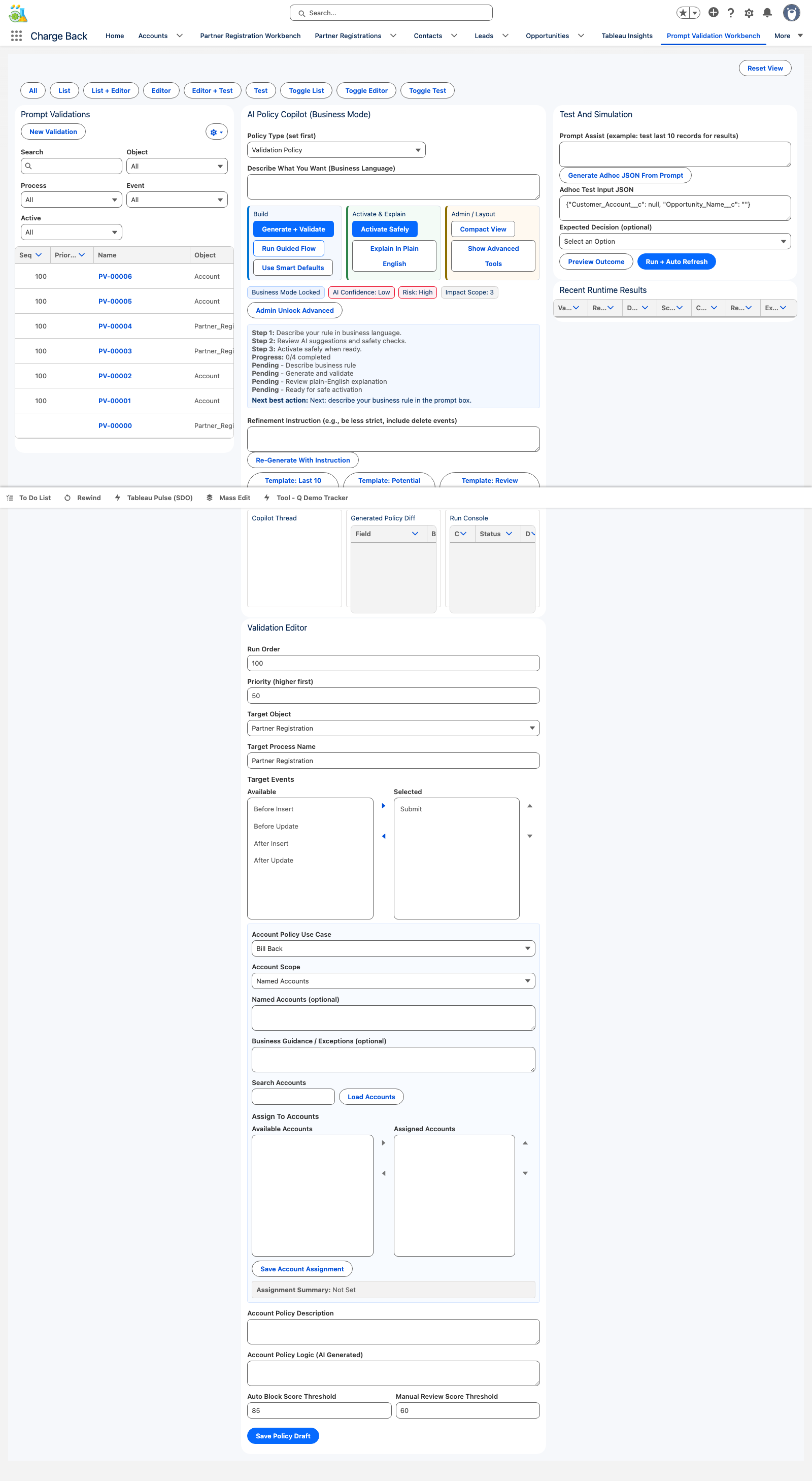
Prompt Validation Workbench - Full View
The Prompt Validation Workbench showing all three panels: Policy List (left), Editor (center), and Test & Simulation (right)

Panel A — Policy List

New Validation button, search & filters (object, process, event, active), auto-numbered policy list with sequence, priority, state, and active status.

Browse & Select

Panel B — AI Copilot & Editor

Generate + Validate, Coach Prompt, Guided Flow, Smart Defaults, Activate Safely, Explain Policy. Below: configuration fields for target object, thresholds, account scope.

Build & Configure

Panel C — Test & Simulation

Prompt Assist for auto-generating test payloads, adhoc JSON testing, expected decision matching, simulation against real records, execution trace.

Validate & Verify
ButtonShowsBest For
AllList + Editor + TestFull workspace when screen is large
ListPolicy list onlyBrowsing and selecting policies
List + EditorList and editorEditing rules while browsing
EditorEditor onlyFocused rule authoring
Editor + TestEditor and testIterating on rules with live testing
TestTest panel onlyFocused testing and simulation

Status Indicators

AI Confidence: Low / Medium / High Risk: Low / Medium / High Impact Scope: # of records affected
Create

Creating a policy
step by step

Before you start: Have a clear idea of (1) what condition should trigger the rule, (2) what should happen (Block, Review, or Allow), and (3) which accounts or processes it applies to.
1

Create a New Validation

Click New Validation in the Policy List panel. A blank policy is created with default settings: Sequence 100, Priority 50, Target Object: Partner Registration, Block Threshold: 85, Review Threshold: 60.

2

Set Policy Type

Select Validation Policy (shared business rule) or Approval (individual-owned) from the Policy Type dropdown. Choose "Validation" for rules the team manages. Choose "Approval" for personal workflow rules.

3

Describe Your Rule in Business Language

In the "Describe What You Want" field, type your rule in plain English.

examples
"Customer account required and duplicate review"

"Block if opportunity name is blank or account has no billing address"

"Flag for review if discount percentage exceeds 20% and deal size is under $50K"
Tip: Use Coach Prompt to get feedback on your description. It will tell you if conditions, outcomes, or scoring guidance are missing.
4

Generate + Validate

Click the green Generate + Validate button. The system parses your business language into executable rule logic, creates execution steps with conditions and fallback modes, and sets AI Confidence, Risk, and Impact Scope indicators.

If AI Confidence is Low: Your description may be ambiguous. Click Coach Prompt to get suggestions. If Risk is High: Consider scoping to Named Accounts first.
5

Configure Account Scope

In the Validation Editor, set: Account Policy Use Case (Bill Back, Chargeback, Product Restriction, etc.), Account Scope (Named Accounts, Segment, or All Accounts), and optionally assign specific named accounts and add Business Guidance notes.

6

Save Policy Draft

Click Save Policy Draft at the bottom of the editor. The policy is now saved as a Draft version. Next step: test it before activation.

Test

Testing & simulation

Always test your rules before activating. The workbench provides two testing methods.

Adhoc Test

Single Record Test

Quick validation against a single JSON payload.

1Enter test data as JSON, or use Prompt Assist to auto-generate
2Optionally set expected decision (Block/Review/Allow)
3Click Preview Outcome or Run + Auto Refresh
4Review decision, score, result code, recommendation, rationale
json
{"Customer_Account__c": null,
 "Opportunity_Name__c": ""}
Simulation

Bulk Test (up to 500 records)

Run your rule against real records from the target object.

1Click Show Advanced to expand bulk test section
2Set record limit (default: 100, max: 500)
3Click Run Simulation
4Review pass/fail counts, per-record decisions, execution traces
Run simulation on both active and draft versions to compare

Execution Trace

Each test run produces a step-by-step trace showing how the engine evaluated your rule:

SeqStepTypeOutcomeDecisionScore
10Rule Step 10ValidationMatchedReview75
20Rule Step 20ValidationNoMatchReview75
30Rule Step 30ValidationMatchedReview75
Activate

Activation & rollback

Use "Activate Safely" (Recommended)

Runs automated readiness checks: steps present and properly sequenced, no conflicts with other active policies, test coverage exists, sample runtime performance is acceptable. If all checks pass, the policy goes live. If any fail, you'll see specific error messages.

If Something Goes Wrong

Deactivate

Turns off the policy entirely. The rule stops evaluating immediately. Fastest option.

Immediate

Rollback Version

Switches back to the previously active version. The old rule logic takes effect instantly.

Targeted

Policy Set Rollback

If you activated multiple policies together, restore the entire set from a saved snapshot.

Bulk Restore
Snapshot & Restore: Before making changes to a set of related policies, click Capture Policy Set Snapshot in the Advanced panel. This saves the current state of all policies for that object/process/event. If issues arise after changes, click Rollback Policy Set to restore everything to the snapshot.
Versions

Version management
& safe change

Every change creates a new version. Versions are numbered sequentially (V1, V2, V3...). Only one version can be active at a time. Previous versions are preserved and can be reactivated instantly.

Version Lifecycle

Draft Submitted Approved Active

Versions can also be Rejected (goes back to Draft for rework)

Comparing Versions (Diff)

Use Version Diff in Advanced View to compare any two versions side-by-side. Select left/right versions and click Run Diff.

SectionKeyLeft (Old)Right (New)Status
ThresholdsBlock8590Changed
ThresholdsReview6060Same
StepsStep 30Check billing addrAdded
StepsStep 20Check phoneRemoved

✓ Best Practice

1Run a simulation with the new version
2Compare results against the current active version
3Note the records that would change decisions
4Activate — knowing you can rollback instantly

✗ Avoid

Edit and activate without testing
Change multiple policies at once without a snapshot
Delete old versions — keep them for rollback
Ignore the blast radius warning
Governance

Governance dashboard

Monitor coverage, review feedback, check cross-model validation, and manage policies at scale.

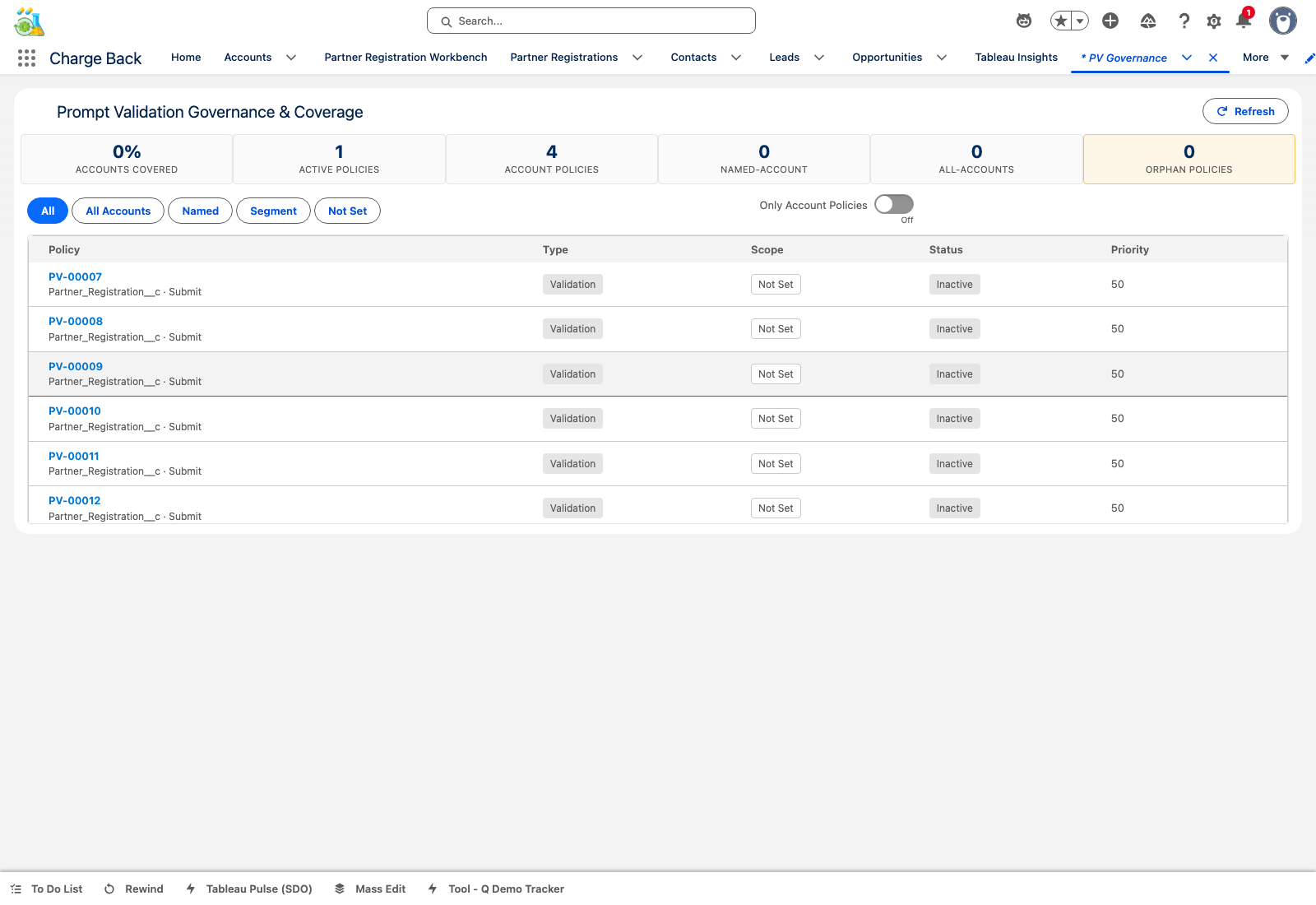
Governance Dashboard
The Governance & Coverage Dashboard showing KPIs, policy list with status badges, and scope filters
Accounts Covered
0%
Active Policies
1
Account Policies
4
Named-Account
0
All-Accounts
0
Orphan Policies
0
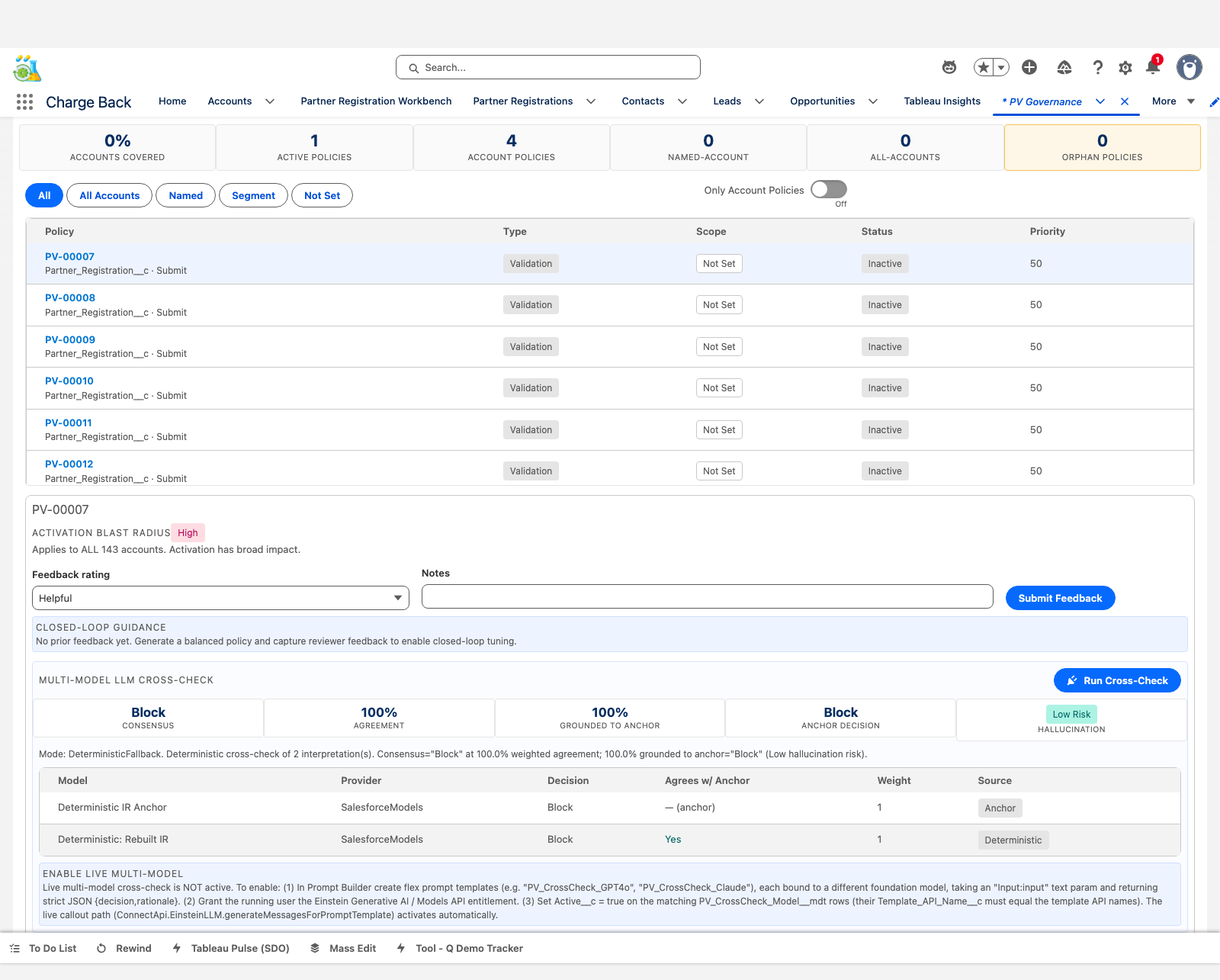
Cross-Check and Feedback
Policy detail: blast radius analysis, feedback submission, and multi-model cross-check results

Blast Radius

Shows how many accounts would be affected if a policy is activated. "Applies to ALL 143 accounts" = high blast radius — review carefully.

Impact Analysis

Closed-Loop Feedback

After a policy runs, reviewers can rate outcomes as Helpful, Unhelpful, or Wrong. Feedback helps tune policies over time.

Continuous Improvement

Multi-Model Cross-Check

Optionally validate your rule against multiple AI models. Shows consensus, agreement %, and hallucination risk.

Validation Layer
Advanced

Advanced features

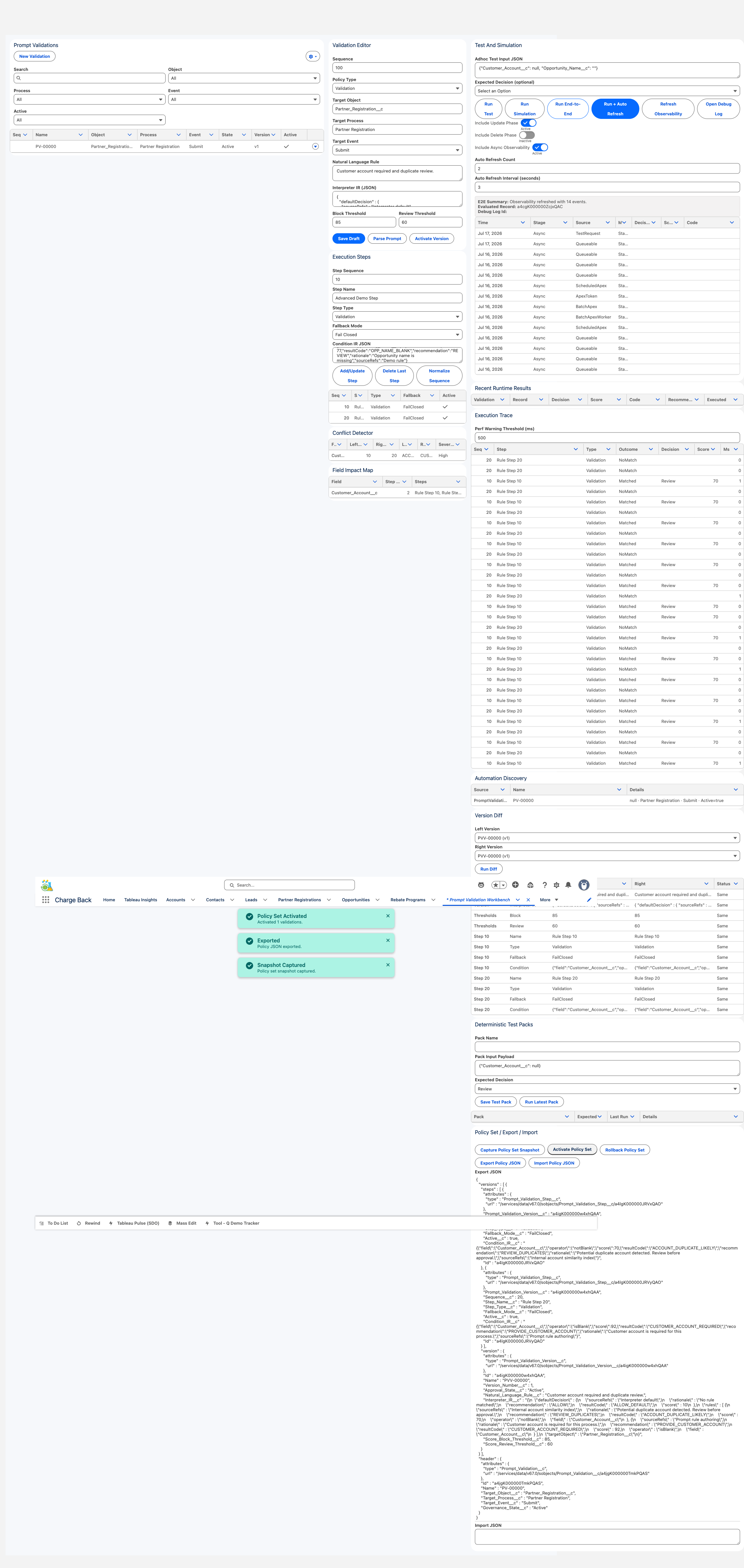
Advanced View
Advanced View: execution steps, conflict detector, field impact map, version diff, policy export/import

Execution Steps Editor

View/edit individual steps: sequence, type (Validation/Approval/Enrichment/Action), fallback mode, condition IR, active toggle

🔍

Conflict Detector

Identifies intra-policy contradictions (steps that conflict) and inter-policy conflicts (competing rules on the same field)

🗺️

Field Impact Map

Shows which fields are evaluated by which steps across all active policies. Understand coverage and overlap.

📦

Export / Import

Export policies as JSON for backup, migration, or sharing between orgs. Import to restore or transfer.

🧪

Deterministic Test Packs

Save reusable test cases with expected outcomes. Run full test packs to verify behaviors after changes.

🤖

Copilot Refinement

Re-generate rules with refinement instructions. Use templates (Last 10, Potential, Review) for common patterns.

Access

Roles & permissions

Two permission sets control access. Users manage their own approval policies; Admins manage everything.

CapabilityUser (PV User)Admin (PV Admin)
Validation Policies (shared)
View validation policies
Create / edit / delete validation policies
Activate / deactivate validation policies
Approval Policies (individual)
View own approval policies
View all users' approval policies
Create / edit own approval policies
Testing & Feedback
Run adhoc tests
Submit feedback on outcomes
Run simulations
Run cross-model checks
Governance
View Governance Dashboard
Export / import policies
Policy set snapshot & rollback
Troubleshooting

Common issues &
how to fix them

"AI Confidence: Low" after generating
Your rule description may be too vague or missing key elements. Click Coach Prompt to get specific feedback. Common fixes: add explicit conditions ("if X is blank" instead of "check X"), add explicit outcomes ("block the submission" instead of "handle it"), use specific field names like "Customer Account" or "Opportunity Name".
"Activate Safely" fails with readiness errors
The safety check found issues. No steps: Re-run Generate + Validate. Conflicts detected: Use Conflict Detector to find and fix. No test coverage: Run at least one test first. Runtime too slow: Simplify the rule or reduce step count.
Rule is active but not evaluating records
Check in order: Is_Active__c = true on the policy record. Active Version is set (not blank). Target Event matches how the record is being created/updated. Effective dates — today must be within the window. Account scope — if Named Accounts, the record's account must be assigned.
Test shows "Allow" but I expected "Block"
The rule isn't matching the test data. Check the Execution Trace to see which steps matched. Verify field names in your test JSON match the object's API names exactly. Check thresholds — maybe the score is 80 (Review) not 85 (Block). Try adjusting the Block Threshold down or adding more strict conditions.
I can't see a policy another team member created
If it's an Approval policy — this is by design. Only the owner and admins can see approval policies. If it's a Validation policy — check that you have the Prompt Validation User permission set assigned. Contact your admin if you believe you should have access.
I activated a bad rule — how do I undo it?
Immediate fix: Click the policy → Deactivate. The rule stops evaluating instantly. Rollback to previous version: Reactivate the prior working version. Bulk rollback: If you changed multiple policies, use Policy Set Rollback with your saved snapshot.
Best Practices

Do's and don'ts

✓ Do

Always test before activating — run both adhoc and simulation tests
Use Version Diff to compare old vs new before activating changes
Start with Named Accounts scope, expand to All Accounts after validation
Capture a Policy Set Snapshot before making bulk changes
Use Coach Prompt to improve rule descriptions
Submit feedback on runtime results — it helps improve rules
Keep old versions — they're your safety net for rollback
Use meaningful business language — not technical field references

✗ Don't

Activate without testing — even "small" changes can have broad impact
Use "All Accounts" scope without checking blast radius first
Change multiple policies at once without a snapshot
Ignore "Risk: High" warnings — they're there for a reason
Delete old versions — you may need them for rollback
Skip the Conflict Detector when adding overlapping rules
Set Block Threshold too low — you'll block legitimate records
Forget to assign the right permission set to new team members
Worked Examples

Real-world scenarios,
end to end

Three complete examples showing how to create, test, and activate policies for common business needs.

Block Registrations Without Customer Account

Validation Policy · All Accounts · Submit Event
Business Need
Partner registrations submitted without a linked customer account cause downstream claim failures. We need to block these at the point of submission.
Rule Description
business language
Customer account required and duplicate review
What The Engine Generates
Step 10: Check if Customer_Account__c is blank → Score: 90 (Block)
Step 20: Check if Opportunity_Name__c matches an existing record → Score: 75 (Review)
Test Cases
Should BLOCK
{"Customer_Account__c": null,
 "Opportunity_Name__c": ""}
Should ALLOW
{"Customer_Account__c": "001xx000003DGbY",
 "Opportunity_Name__c": "Acme Deal"}
Settings
Block: 85 Review: 60 Scope: All Accounts Use Case: Chargeback

Flag Large Discounts for Review

Approval Policy · Named Accounts · Before Update Event
Business Need
As a regional manager, I want to review any deal where the discount exceeds 15% before it's finalized. This is my personal workflow rule.
Rule Description
business language
Flag for review if discount percentage exceeds 15 percent
Settings
Policy Type: Approval Block: 95 (rarely block) Review: 50 (flag generously) Scope: Named Accounts (my territory)
Note: As an Approval policy, only you (the owner) can see and manage this rule. Admins have override visibility for support purposes.

Updating an Existing Rule with Version Comparison

Version management workflow
Scenario
The "Customer account required" rule (PV-00007) is too strict — it's blocking registrations where the account exists but the lookup field has a different format. We need to relax the check.
Workflow
1

Select PV-00007

Find and select the policy in the policy list

2

Modify the Rule

"Customer account required. Allow if account name is provided even without lookup ID."

3

Generate + Validate

Creates Version 2 with the updated rule logic

4

Open Version Diff

Advanced View → Version Diff → Left: V1, Right: V2 → Run Diff

5

Review Changes

Step 10 condition changed from isBlank to isBlank AND nameIsBlank

6

Run Simulation with V2

Compare results vs V1: "5 records that were blocked would now be allowed"

7

Activate Safely

Satisfied with the change → Activate. If issues arise next day → Rollback to V1 instantly

Test before you activate.
Rollback if you need to.

Prompt Validation Workbench · Chargeback Application · v1.0 · August 2026